
Capsule Configuration
There are two ways to store configuration information for your capsules, such as endpoint URIs, API keys, permission scopes, environment modes, or any other configuration data that you'd like to be able to change without editing capsule code:
- The
capsule.propertiesfile within your capsule itself. - The Configuration & Secrets tab of your capsule settings page in the Developer Console section of the Bixby Developer Center.
Endpoint URIs can be stored in the Configuration & Secrets dynamic configuration section, but only if they're going to be accessed directly by a local JavaScript function. Values entered here are not available to the endpoints.bxb file.
Secrets are sensitive information that should not be stored in code and might need to be updated frequently, such as API keys or other authentication details. By entering these in the Secrets section of the Bixby Developer Center, they will be securely encrypted end-to-end, and will even appear obfuscated in the Developer Center's UI. Secrets can be updated at any time.
Static, non-sensitive information that isn't likely to change often should be defined in the capsule.properties file. This could include endpoint URIs, permission scopes, and feature gates.
By setting dynamic properties in the Configurations section of the Bixby Developer Center, you can change property values without editing capsule code. If you define capsule properties in the Developer Center with the same names as properties in the capsule.properties file, the dynamic values will override the static ones in the file. Delete these dynamic properties to return to the values defined in the file.
Capsule Properties File
Use the capsule.properties file to store configuration properties related to your capsule, such as endpoints, scopes, or whether to use test or production configuration properties. This file is for properties that you don't expect to change very often, if at all. Properties that are likely to change should be handled through the Configuration & Secrets screen of the Bixby Developer Center. (You can override any property defined in this file by entering a new value for it in the Configuration screen.)
This file use a simple INI-like format:
key=value
group.key=valueAPI keys, passwords, and other sensitive information must be entered and managed through the Secrets section of the Configuration & Secrets page. They must never be stored in the capsule.properties file!
Configuration Mode
You can set the configuration mode for your capsule using capsule.config.mode.
You can set properties for specific configuration modes, which are helpful when you want to use your capsule in different environments.
capsule.config.mode=defaultCapsule Properties
You can set properties for each mode using this format:
config.%mode%.%propertyKey%=%propertyValue%Use the default mode for any fallback property values:
config.default.my.property.key=myValue 123Capsule properties are treated as strings, so ensure that you cast them to right type. Do not include empty strings, as they are then surrounded by quotes ("""").
Toggle Properties and Content
You can toggle individual capsule properties using this format:
config.default.toppicks=falseYou can toggle content from a capsule using this format:
capsule.enabled=falseConfiguration & Secrets
To set configuration properties and secrets dynamically through the web interface:
- Open the Developer Console.
- Select the capsule for which you want to edit configuration values or secrets.
- Select the Settings tab.
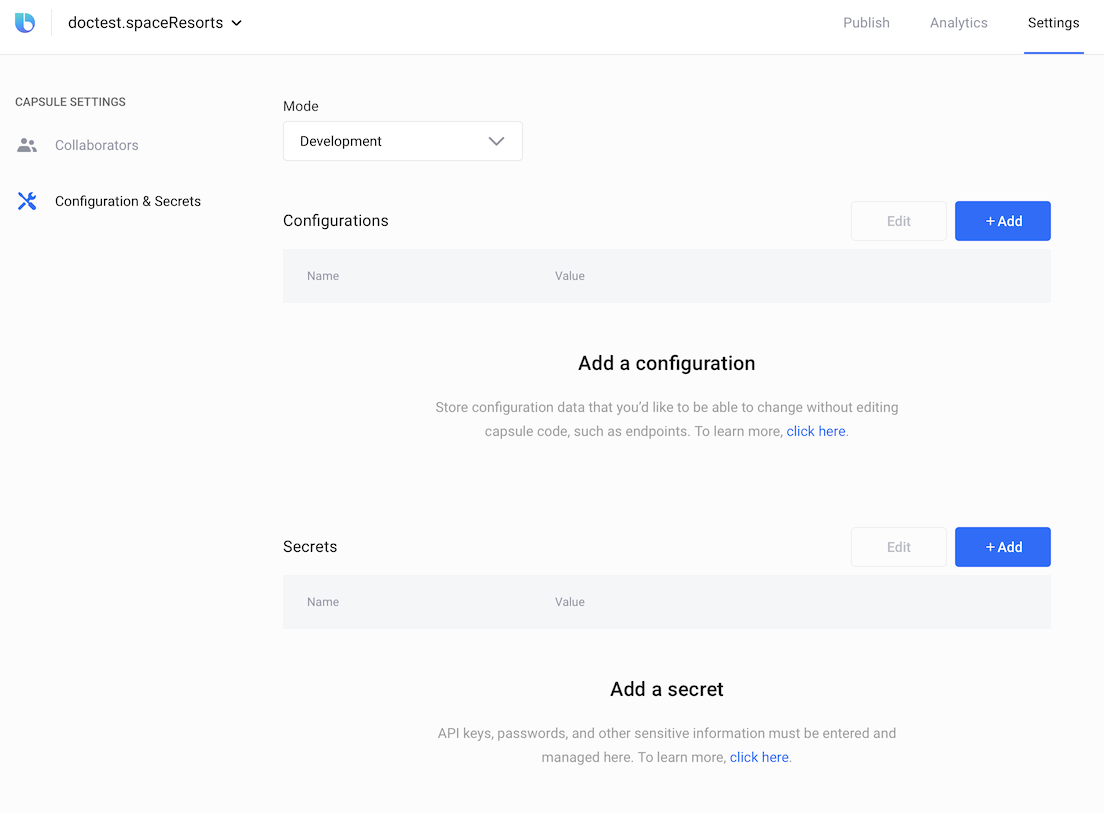
- Click the + Add button to add a new key/value pair to either the Configuration section or the Secrets section. This will display fields to enter a new name and value, as well as a + Add button to add more rows. When you're finished, click Save & Apply. The new keys will immediately be used by all deployed versions of the capsule.
- Click Edit to edit existing key/value pairs.
- Click the X to the right of any key/value pair that appears on hover to delete it.
You can provide different values for properties and secrets in development and production modes by selecting Development or Production in the Mode menu. You can learn more about when these modes are used in the Property Precedence section.
The configuration mode setting in the Configuration & Secrets UI screen is independent of the configuration mode setting in the capsule.properties file.
Property Precedence
When Bixby looks for a property value, it normally follows this precedence:
- Properties defined in the Configuration & Secrets UI Dev mode, when applicable.
- Properties defined in the Configuration & Secrets UI Prod mode, when applicable.
- Properties defined in the currently active configuration mode in
capsule.properties. - Properties defined in the
defaultconfiguration mode incapsule.properties.
However, the mode that Bixby starts looking in is dependent on the following:
- If you are using a private submission as a revision override (either in the Simulator or while on-device testing), Bixby follows steps 1-4.
- If you are testing synced capsules in the Simulator, Bixby follows steps 1-4.
- If you are using a public submission as a revision override (either in the Simulator or while on-device testing), Bixby follows steps 2-4 (and ignores Dev mode).
For example, if you define config.sport=baseball in the properties file and then use the Configuration & Secrets screen to set sport to cricket, calling config.get('sport') from the JavaScript API (see Reading Properties & Secrets below) will return cricket, not baseball. The definition in the UI screen has a higher precedence than the definition in capsule.properties.
Reading Properties & Secrets
To access configuration properties, use the config.get() JavaScript method. To access secrets, use the secrets.get() JavaScript method.
const configValue = config.get('myConfigKey')
const secretValue = secret.get('mySecretKey')
Secrets and configuration properties are entirely separate from each other: config.get('key') and secret.get('key') can yield different values. The configuration property named key and the secret named key are separate.
Changes made in the Configuration & Secrets screen will not be reflected in the Bixby Developer Studio Simulator until a new conversation is started. If the Simulator is open when you make a change to a configuration or secret value, then recompile the NL model or press the Reset button in the Simulator to reload the new value.
Secret keys are also used for OAuth Authorization and can be specified with the client-secret-key key.
authorization {
  user {
    oauth2-authorization-code (providerId) {
      authorize-endpoint (https://example.com/login/v3/oauth)
      client-id (mybixbyclient)
      client-secret-key (secretkey)
      token-endpoint (MyToken.js::tokenEndpoint)
    }
  }
}
In this example, secretkey is the name of the secret property defined in the Configuration & Secrets screen that contains the authorization value, similar to secret.get('secretkey') in JavaScript.